Losing your iPhone can feel stressful and frustrating. Luckily, iCloud Find My iPhone is here to save the day. Whether your device is misplaced at home or stolen, this feature helps you locate, lock, or even erase your phone remotely. In this guide, we’ll walk you through everything, including tips, tricks, and FAQs, so you can feel confident protecting your iPhone.
What is iCloud Find My iPhone?
iCloud Find My iPhone is a free service by Apple. It lets you track your iPhone, iPad, or Mac if lost. All you need is your Apple ID and internet access. The feature uses GPS and internet connectivity to show your device’s location on a map.
You can also make your iPhone play a sound, display a message, or lock it remotely. This ensures your personal data is safe. Real-life example: Sarah misplaced her iPhone at a coffee shop. She opened iCloud Find My iPhone on her iPad, saw her phone’s location, and recovered it in minutes.
How to Set Up iCloud Find My iPhone
Setting up iCloud Find My iPhone is simple:
- Open Settings on your iPhone.
- Tap your name > iCloud > Find My iPhone.
- Turn on Find My iPhone and Send Last Location.
Turning this on ensures you can locate your iPhone even if the battery is low. Make sure your Apple ID is active, as this is the key to tracking your device. Pro tip: Always double-check that “Send Last Location” is enabled for emergencies.
How iCloud Find My iPhone Works
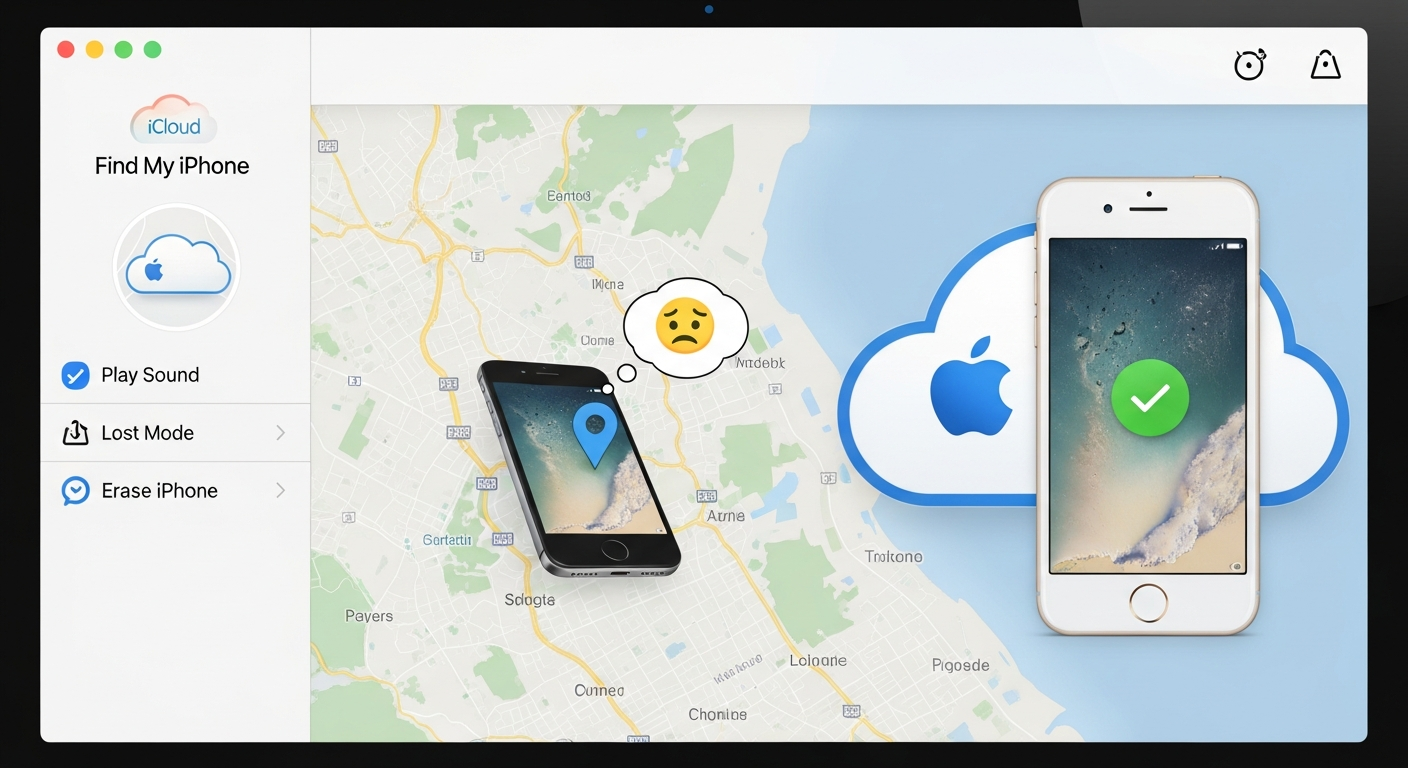
When your iPhone is lost, it sends its location to Apple servers using GPS or Wi-Fi. You can then access iCloud Find My iPhone via a browser or another Apple device. Features include:
- Play Sound: Helps find a misplaced phone nearby.
- Lost Mode: Locks your device and displays a contact number.
- Erase iPhone: Deletes all data if the phone is unrecoverable.
This ensures both recovery and security, making it a reliable safety tool.
Using iCloud Find My iPhone on a Computer
You don’t need another iPhone to track your device. Simply:
- Visit iCloud.com on any browser.
- Log in with your Apple ID.
- Click Find iPhone and select your device.
This method is perfect if your iPad or Mac isn’t available. You can locate, lock, or erase your iPhone remotely, giving peace of mind in emergencies.
iCloud Find My iPhone Features
| Feature | Icon | Description | Status |
|---|---|---|---|
| Locate Device |  |
Find your iPhone on a map in real-time using GPS and Wi-Fi signals. | Available |
| Lost Mode | |
Lock your iPhone remotely and display a contact number for recovery. | Available |
| Play Sound | |
Make your lost iPhone play a sound to help locate it nearby. | Available |
| Erase iPhone | |
Remotely erase all personal data to protect privacy if the phone is unrecoverable. | Available |
| Send Last Location | |
Automatically sends your iPhone’s last known location before battery dies. | Available |
| Track Multiple Devices | |
Use your Apple ID to track iPhone, iPad, Mac, and other Apple devices. | Available |
Using iCloud Find My iPhone on Another Device
If someone else’s Apple device is nearby:
- Open the Find My app.
- Sign in with your Apple ID.
- Select your lost iPhone from the device list.
This method is quick and effective, especially if you are traveling or away from your computer. Real example: Mark’s phone slipped between car seats. Using a friend’s iPad, he triggered the Play Sound feature and found it instantly.
Lost Mode: What You Need to Know
Lost Mode is crucial for security. When activated:
- Your iPhone locks with a passcode.
- A custom message with contact info displays on the screen.
- Tracking continues even if the device is offline.
This prevents unauthorized access and increases chances of recovery. Remember to act quickly for best results.
How to Erase iPhone Using iCloud
If recovery seems impossible, you can erase your iPhone remotely:
- Open iCloud Find My iPhone.
- Select your device > Erase iPhone.
This deletes all personal data but keeps your Apple ID linked. Your iPhone will be unusable to thieves, protecting your information. This feature is vital for lost or stolen phones.
Frequently Asked Questions (FAQs)
1. Is iCloud Find My iPhone free?
Yes! It’s free for all Apple devices with an Apple ID.
2. Can I locate my iPhone without internet?
Your iPhone must be online for real-time location. Offline, Find My network can help.
3. What if my iPhone battery dies?
Enable Send Last Location. It sends the device’s last known location before dying.
4. Can someone disable iCloud Find My iPhone?
Only with your Apple ID password. This keeps your device secure from thieves.
5. Can I track multiple devices?
Yes! Your Apple ID can track iPhone, iPad, Mac, or even AirPods.
6. How accurate is the location?
Typically within a few meters, depending on GPS and Wi-Fi signals.
Tips to Maximize iCloud Find My iPhone
- Always update iOS for improved features.
- Enable Send Last Location.
- Use strong Apple ID passwords.
- Regularly check devices in the Find My app.
These small steps can prevent panic when losing your device.
Real-Life Experiences
Many people have shared stories of lost iPhones recovered thanks to iCloud Find My iPhone. For example, Emma lost her phone at a park. She quickly used Lost Mode, and a kind stranger returned it using the contact info on the screen. These stories show how powerful and life-saving this feature is.
Conclusion: Why You Need iCloud Find My iPhone
iCloud Find My iPhone is more than a tracking tool—it’s your safety net. It helps you recover lost devices, protect your personal data, and stay stress-free. Set it up today, enable all safety features, and share your knowledge with friends and family. Don’t wait until it’s too late—your iPhone and your peace of mind are worth it.